Overview
What is IngestFlow?
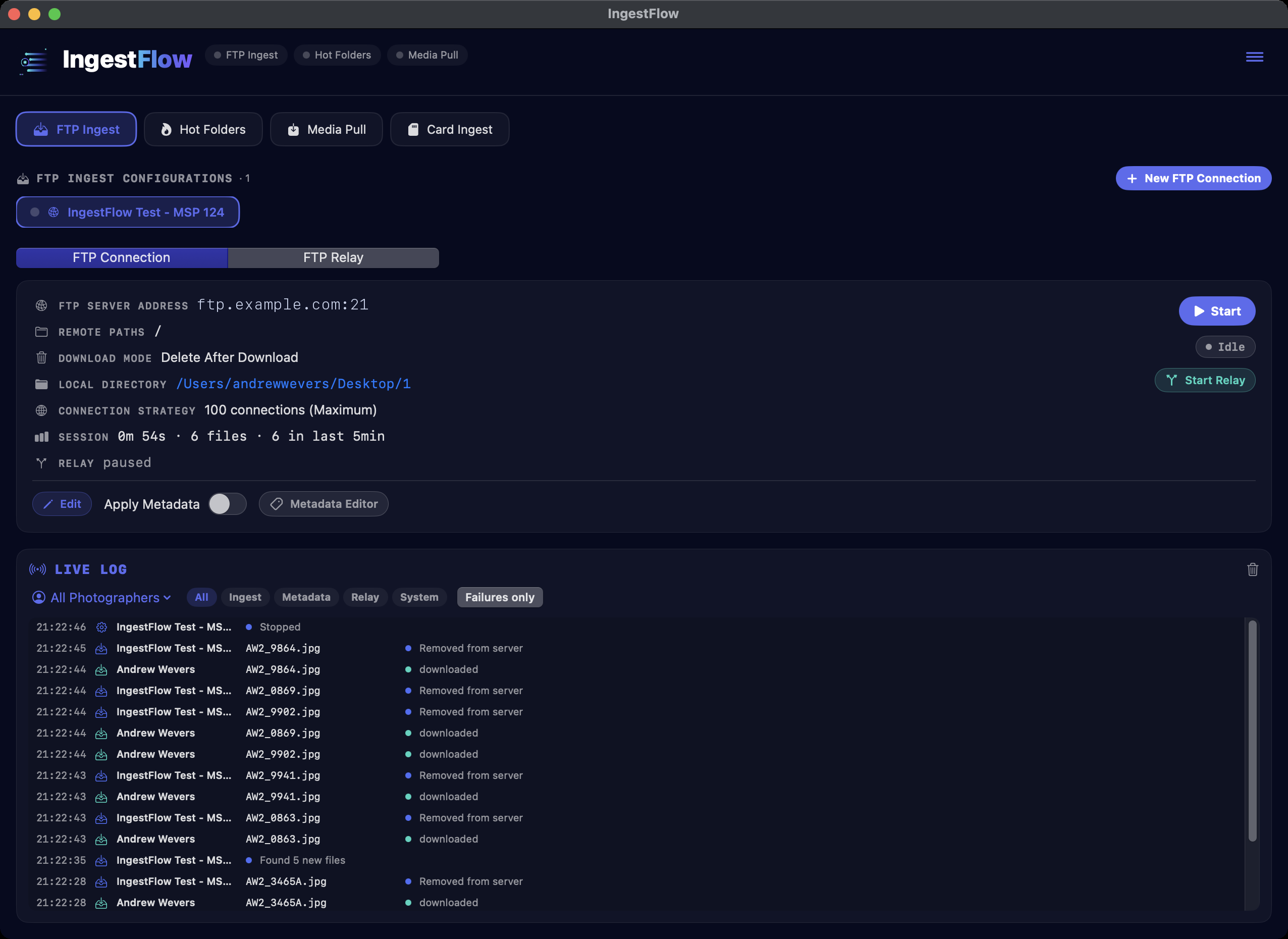
IngestFlow is a macOS app that moves photos for you, hands-free — in every direction, each with its own tab:
FTP Ingest pulls files down off an FTP / FTPS / SFTP server automatically. Point it at a server, pick the folders to watch, and it keeps them mirrored on your Mac — checking each file’s size until it’s stable so you never grab a half-uploaded JPEG, and pulling with up to 200 concurrent transfers. It’s the “get the photos onto my machine” step — perfect when shots are landing on a shared server or a stadium uploader and you want them local, complete, and named. Each connection can also relay what it pulls onward to one or more other servers as it lands.
Hot Folders pushes files out: watch a local folder, and every image you save into it is delivered automatically — to a Scoreplay collection or an FTP/SFTP server. Card Ingest archives camera cards: insert end-of-day cards and full takes are copied into a dated, organized archive, then each card ejects itself. Media Pull goes the other way for social teams — pulling finished media down from a Scoreplay collection or an FTP server into a local folder to grab and post. A fifth tab, Media Upload, is off by default — switch it on in Settings for one-shot bulk uploads into a Scoreplay collection. All are covered below.
Audience
Who is it for?
Photographers, photo desks, and anyone who needs files pulled off an FTP/SFTP server reliably and quickly — a remote shooter uploading to a server, an editor mirroring an incoming folder, or a workflow that feeds another tool downstream.
Requirements
What do I need?
- macOS 13 (Ventura) or later, Apple Silicon or Intel.
- Your server’s address and login. IngestFlow drives the system
curlandsftpthat ship with macOS — there are no bundled binaries to trust or update.
Installation
How do I install it?
Open the .dmg and drag IngestFlow into Applications. It ships signed with a Developer ID and notarized by Apple, so it opens cleanly. On an older macOS, right-click → Open → Open once.
Licensing
How does activation work?
Unlock with a 25-character key (XXXXX-XXXXX-XXXXX-XXXXX-XXXXX). It validates online once, binds to the device, then verifies offline at every launch after that. The unlock window also takes an optional Organization — handy when one photo desk runs several licenses.
The menu & configuration actions
Where did everything go?
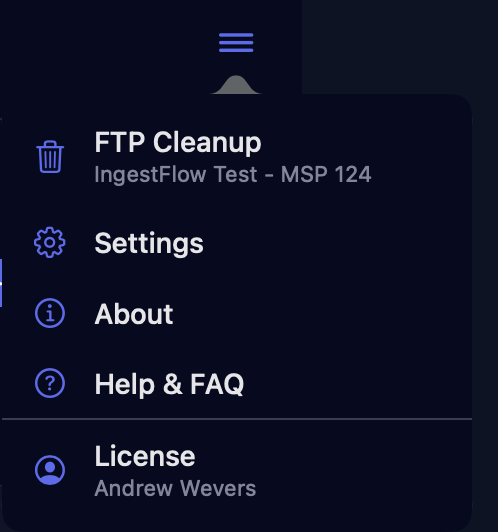
App-wide items live in the menu at the top right: FTP Cleanup, Settings, About, Help & FAQ, and your License. Everything that belongs to one configuration — Export, Clear History, Delete, Open Folder — is a right-click on the configuration itself.
Setting up a watch
How do I point it at a server?
- Add a connection — host, protocol (FTP, FTPS, or SFTP), and login.
- Choose the remote folders to watch and the local destination to mirror them into.
- Pick Keep or Delete mode and a speed level, then start it.
From then on IngestFlow keeps the local copy in step with the server, pulling new files as they appear.
No half-uploaded files
How does it avoid grabbing a file that’s still uploading?
Before downloading, IngestFlow watches a remote file’s size across a 3-sample stability check — only once it stops growing does it pull it. After the download it runs an image-integrity verification, so a truncated transfer never lands in your folder as a broken JPEG. And because big RAW files over slow links can keep growing after they first look done, the server’s copy is re-checked against the bytes received after every download — a still-growing file is set aside and retried later instead of being delivered truncated. This is the core reliability feature: complete files, every time.
What if a file never finishes uploading?
A file that keeps changing size is deferred with widening checks — you’ll see it counted in the log — and after 10 deferrals IngestFlow stops retrying and posts a bold red NEVER COMPLETED notice so a human can re-upload it or restart the sync. Restarting a sync clears its given-up list and tries everything fresh.
Speed & concurrency
How fast is it?
IngestFlow uses a bounded worker pool with selectable aggressiveness levels — from 3 up to 200 concurrent connections. Dial it up to drain a big backlog quickly, or keep it gentle on a shared or rate-limited server.
Auto-stop when idle
What happens if I forget to stop a sync after the event?
It stops itself. A sync that sees no new images for 6 hours shuts down on its own and logs exactly why, so a connection left running overnight isn’t hammering the server for nothing. The window is adjustable per configuration — Never, 2, 6, 12, or 24 hours — in the configuration editor.
Keep vs. Delete
Should it leave files on the server or clear them?
- Keep mode — leaves files on the server and remembers what it already pulled (hash-deduped), so nothing re-downloads.
- Delete mode — removes each file from the server after a clean, verified download, so the inbox stays tidy.
What if the server won’t let it delete a file?
Nothing breaks, and nothing doubles up. IngestFlow remembers what it has already delivered, quietly retries the removal in the background, and recognizes an identical re-send of the same photo — so even when a stubborn server refuses deletes, a file is never delivered twice.
FTP Cleanup — end of shoot
How do I clear everything out after an event?
FTP Cleanup, in the top-right menu, is the end-of-shoot broom for a configuration: move the downloaded local files to the Trash, permanently delete the matching files on the server, or both. The server side is confirmation-guarded and has no undo — read the dialog before you agree to it.
Metadata automation
Can it tag files as they come in?
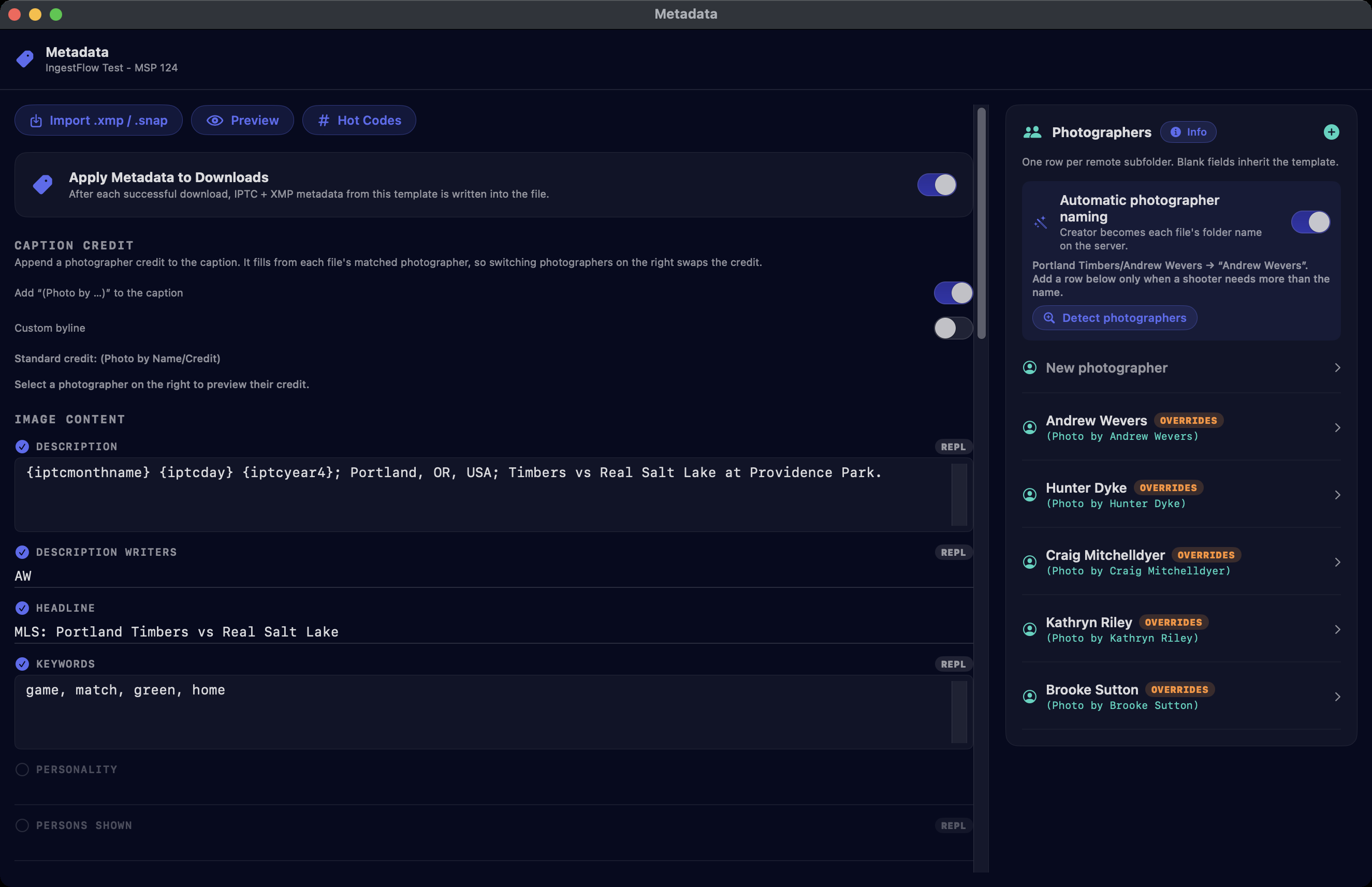
Yes. Each configuration has its own metadata editor — opened from the configuration’s Metadata button — with the IPTC fields on the left and a Photographers pane on the right. Turn on Apply Metadata and every download is captioned and credited automatically, using PhotoMechanic-style hot codes, an optional external hot-codes sheet, and optional .xmp / .snap import. Metadata is embedded directly into JPEG/TIFF/HEIC/PNG and written as .xmp sidecars for RAW files (CR3, NEF, ARW, RAF, ORF, and more). Creator’s Identity and Creator’s Job Title are independent fields, and both round-trip with Photo Mechanic.
Different photographers deliver to different folders — can each get their own byline?
Yes, and it’s automatic. When the server splits shooters into subfolders — Portland Timbers/Andrew Wevers, Portland Timbers/Craig Mitchelldyer — turn on Automatic photographer naming and each file’s Creator becomes its folder name. When a shooter needs more than a name, add a row in the Photographers pane and give them their own job title, credit, copyright and keywords; anything you leave blank inherits the template. A Detect button lists the server and adds every photographer folder it finds, so you can set them up before the first frame lands.
Can it add a “(Photo by …)” credit to the caption?
Yes. Switch on Caption Credit and IngestFlow appends a credit to the caption, filled from each file’s photographer — standard (Photo by Name/Credit) or a custom byline format you define. Select a photographer on the right to preview their exact credit before you go live.
Where do I look up the hot codes?
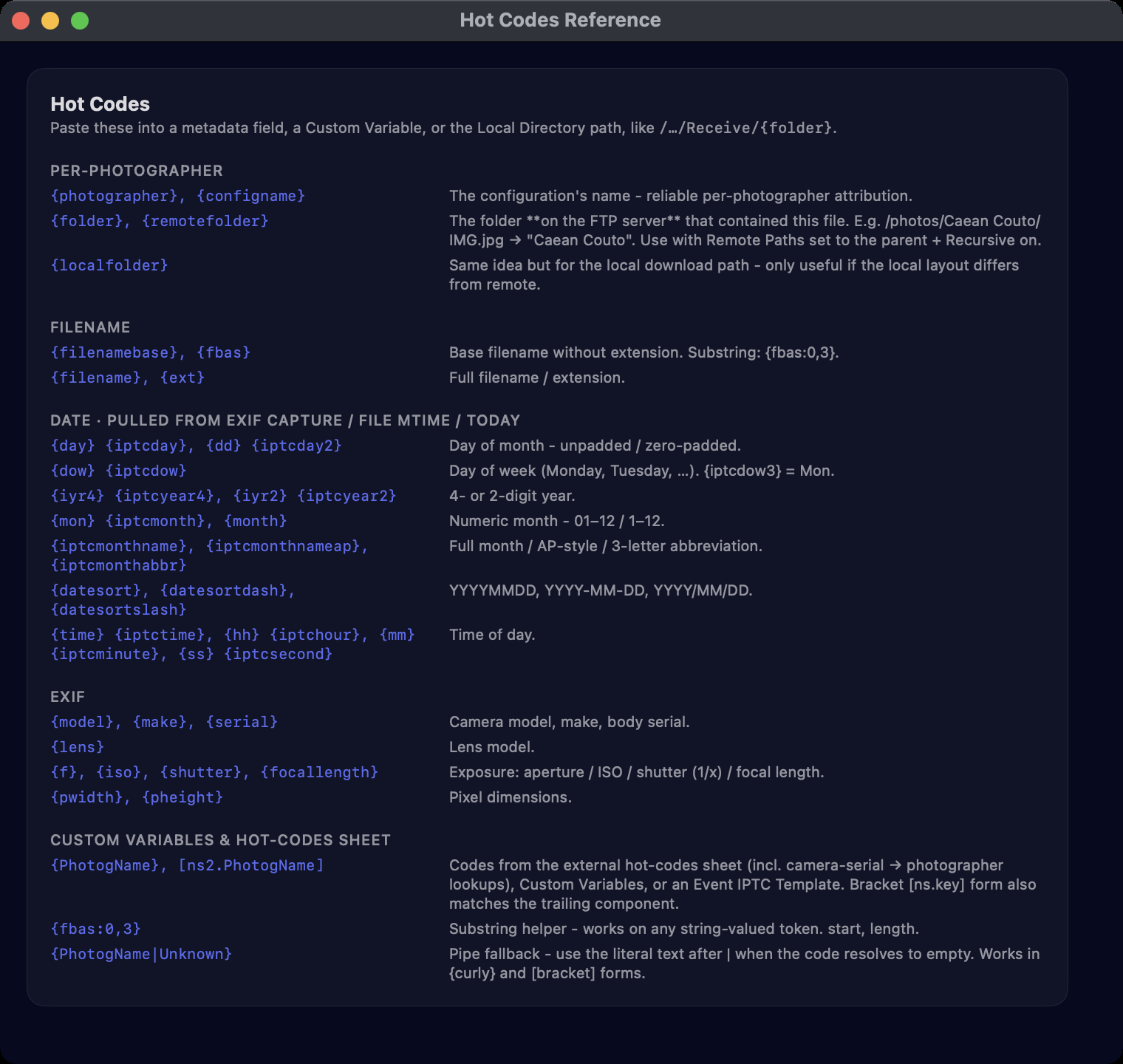
The Hot Codes button opens the token reference in its own window — per-photographer codes, filename and date tokens, camera EXIF tokens, substring helpers and pipe fallbacks — so you can keep it beside the editor while you build a template.
{fbas:0,3}.Live Log — everything, as it happens
How do I see what’s happening during a shoot?
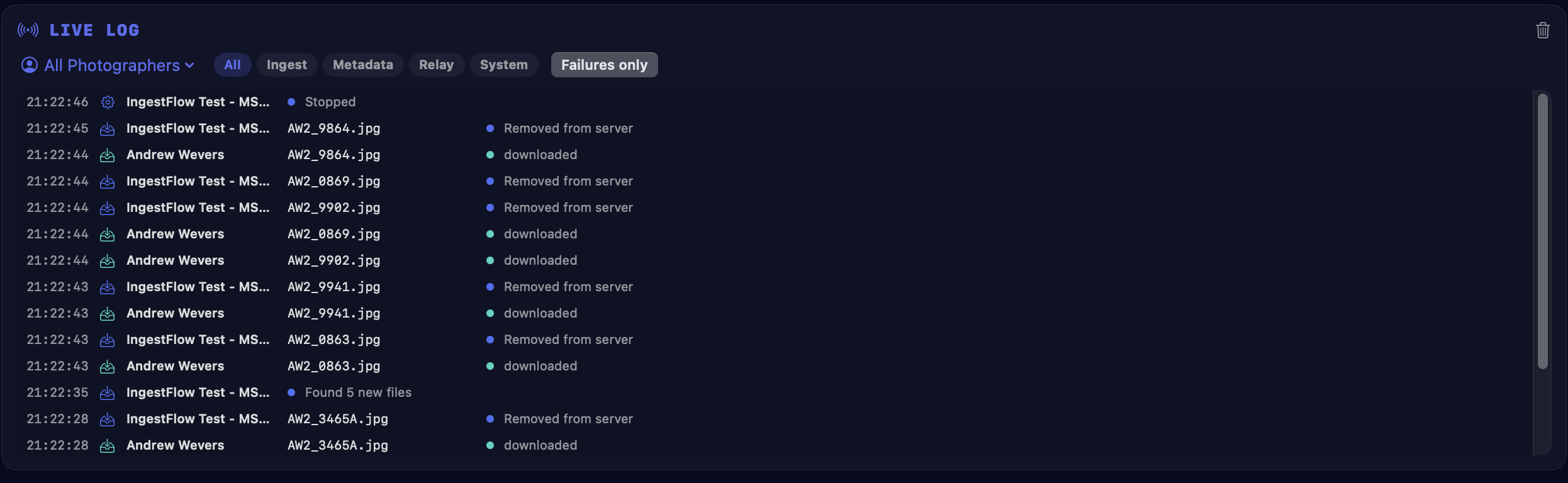
Every configuration has a Live Log — the operational feed, newest first. Filter it by photographer and by lane — Ingest, Relay, Metadata, System — or flip on Failures only to see just what needs a human. Every relay upload logs its own line, so mid-shoot you can watch one photographer’s relay traffic on its own. Error rows render bold red, so a failure can’t scroll past unnoticed.
Relay — re-publish as files land
Can it forward files on to another server automatically?
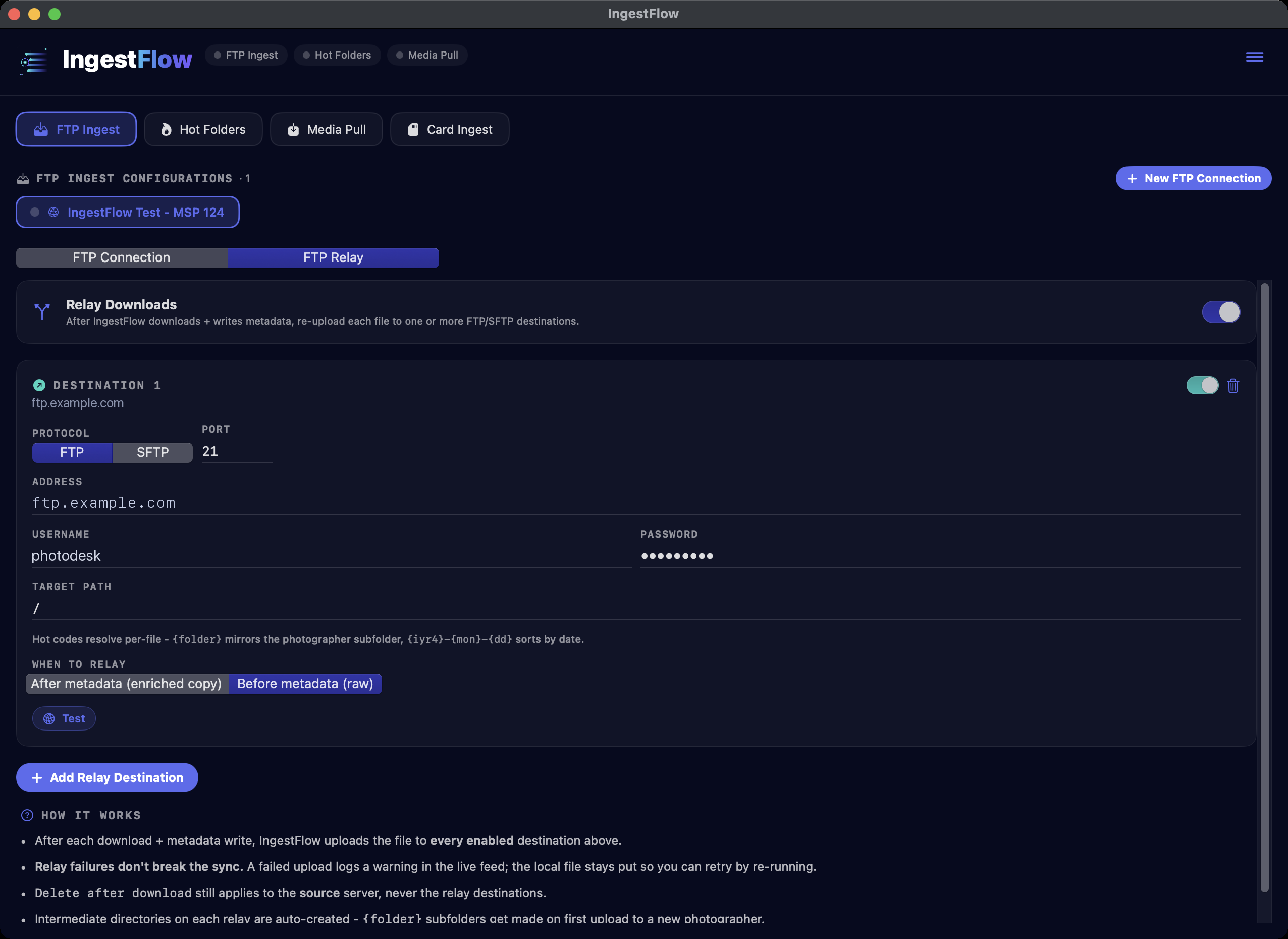
Yes. Any download connection can relay every file it pulls onward to one or more FTP / FTPS / SFTP destinations — the instant it lands, with no manual re-upload. Pull once from a photographer’s drop server, tag it, and fan the same frame out to several client intake servers at once.
Can I send to more than one place?
Yes — add as many relay destinations as you need. Each has its own server, target folder and on/off switch, and each can receive the file either after IngestFlow writes its metadata (the tagged copy) or before (the original, untouched). Target folders take the same hot codes as the rest of the app, so {folder} mirrors your per-photographer structure on every destination.
What if a relay destination is down?
A failed relay upload never breaks the ingest — it’s logged in the live feed and your local copy stays put, so you can retry by re-running. Clearing files from the source server (Delete mode) only ever applies to the source, never a relay destination.
Do files arrive under odd temporary names?
No. Every upload transfers directly under its final filename — services that auto-ingest the moment an upload finishes (PhotoShelter and similar) see each photo exactly once, under its real name.
Hot Folders — save & it’s sent
What is a Hot Folder?
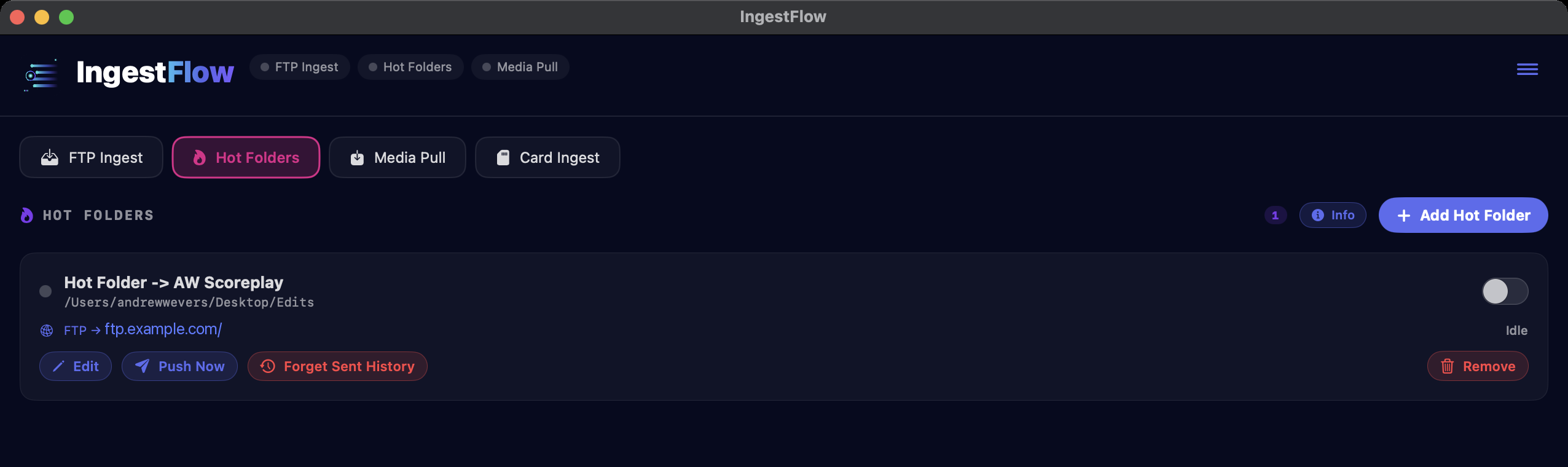
A Hot Folder is a folder on your Mac that IngestFlow watches. The moment you save an image into it, IngestFlow delivers that image for you — straight into a Scoreplay collection or up to an FTP / FTPS / SFTP server. No manual upload step: point a hot folder at the place you export edits to, and it’s edit → save → sent.
How does it avoid sending a half-saved image?
The same discipline as the download side, pointed the other way: a file must sit untouched, hold a stable size across checks, and pass an image-completeness test before it’s sent — built for big batch exports where files take a while to finish writing. Files already in the folder when watching starts stay put (only new saves go out), nothing is ever delivered twice, and a file that changes mid-send is automatically re-sent in its final form.
What happens to files after they’re delivered?
Your choice per folder: leave them where they are, move them into a Sent subfolder so the watch folder stays a clean queue, or send them to the Trash.
How does the Scoreplay side work?
Paste your Scoreplay API key (stored in your macOS Keychain), then search your collections by name — or paste a collection ID — and pick where images should file. Saved images upload straight into that collection.
Card Ingest — full takes off cards
What does Card Ingest do?
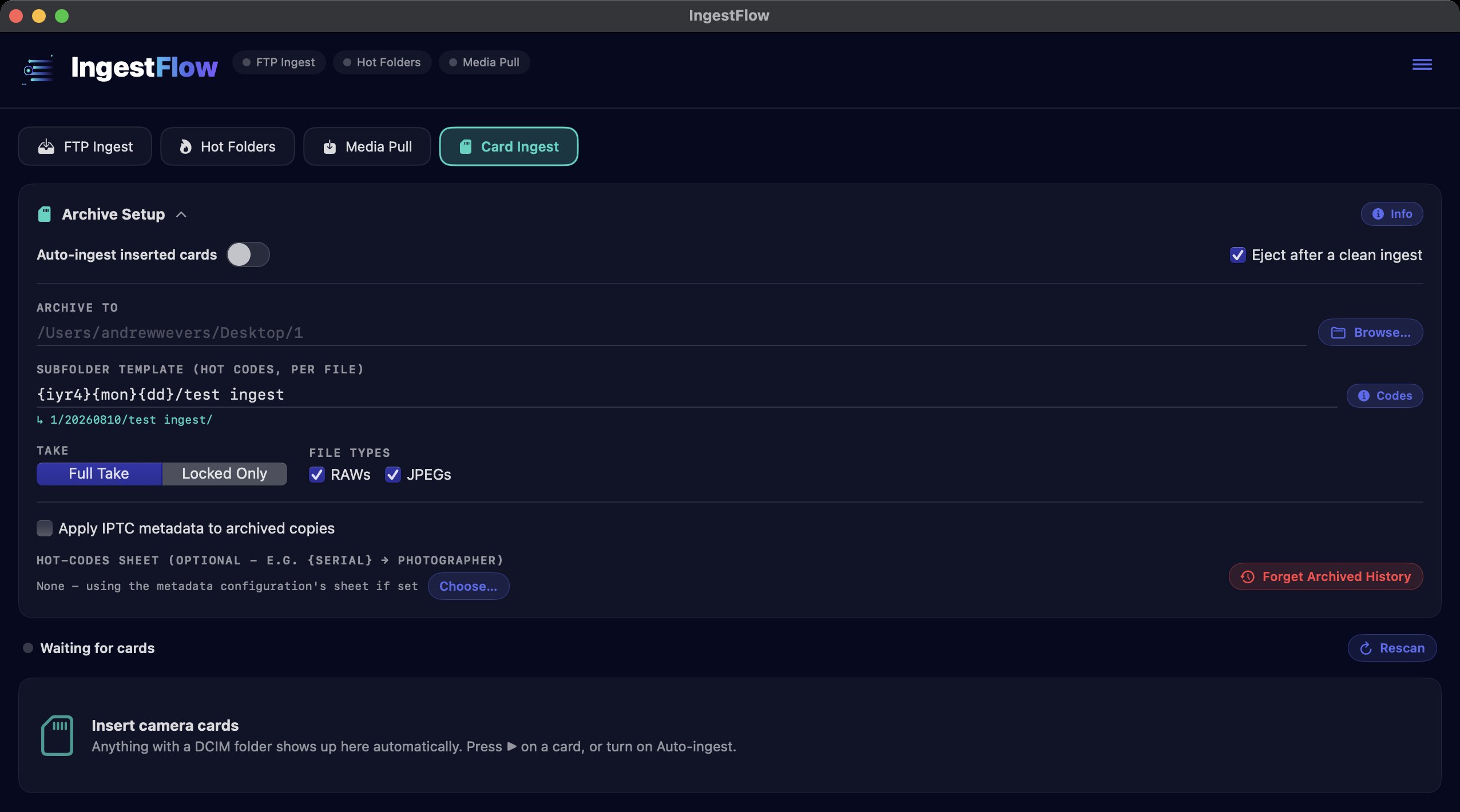
End-of-day full takes. Insert one or more camera cards — anything with a DCIM folder is detected automatically — and IngestFlow archives them: every RAW and JPEG, or just the frames the photographer locked in camera (Full Take / Locked Only). Files land in a dated, organized folder structure, the card is never modified, and a clean ingest ejects the card so you know it’s safe to pull.
How do the folder names work?
The subfolder template uses the same PhotoMechanic-style hot codes as metadata — resolved per file from its capture date and camera info. {iyr4}{mon}{dd}/{photog} files each card under its shoot date and photographer; the photographer comes from a per-card field (remembered for that card) or your external hot-codes sheet, where a serial-number lookup can name the photographer automatically. A live preview under the field shows the resolved path as you type.
Can I run several cards at once?
That’s the design. Each card gets its own tile — counts of RAW / JPEG / locked frames, what’s new versus already archived (visible the moment the card mounts), then a live progress bar with bytes and the current file. Flip on Auto-ingest and the whole flow is hands-off: pop cards in, watch them archive and eject themselves.
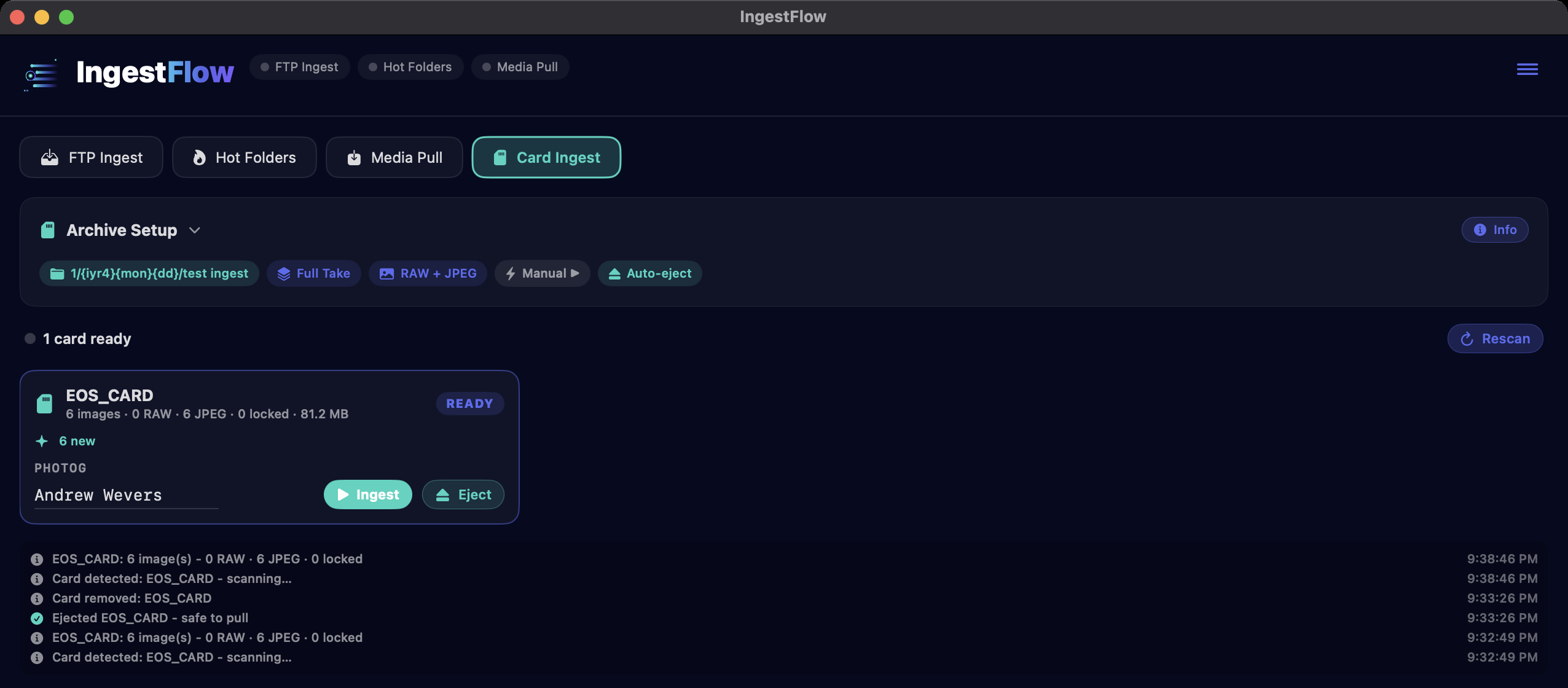
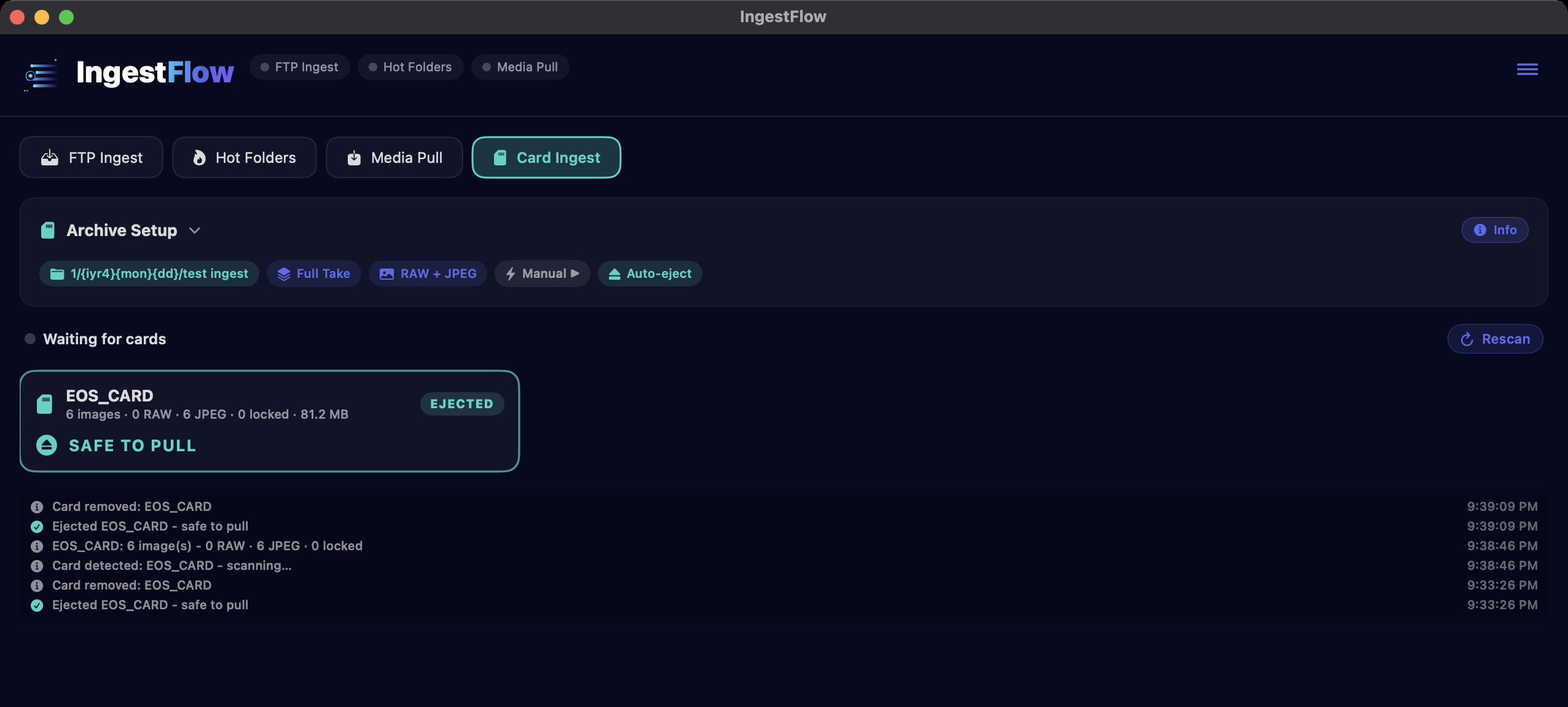
How do I know a card is finished?
Its tile flips to SAFE TO PULL after the automatic eject — unmissable when five readers are running. A card with any failed file stays mounted with the error shown, and is never ejected automatically.
Does anything get archived twice?
No. IngestFlow remembers what it has archived from each card, and double-checks the destination too — re-inserting a card only copies what’s new, and an existing file is never overwritten. Optional IPTC metadata can be applied to the archived copies, borrowed from any configuration’s metadata template.
Media Pull — grab finished media
What is Media Pull?
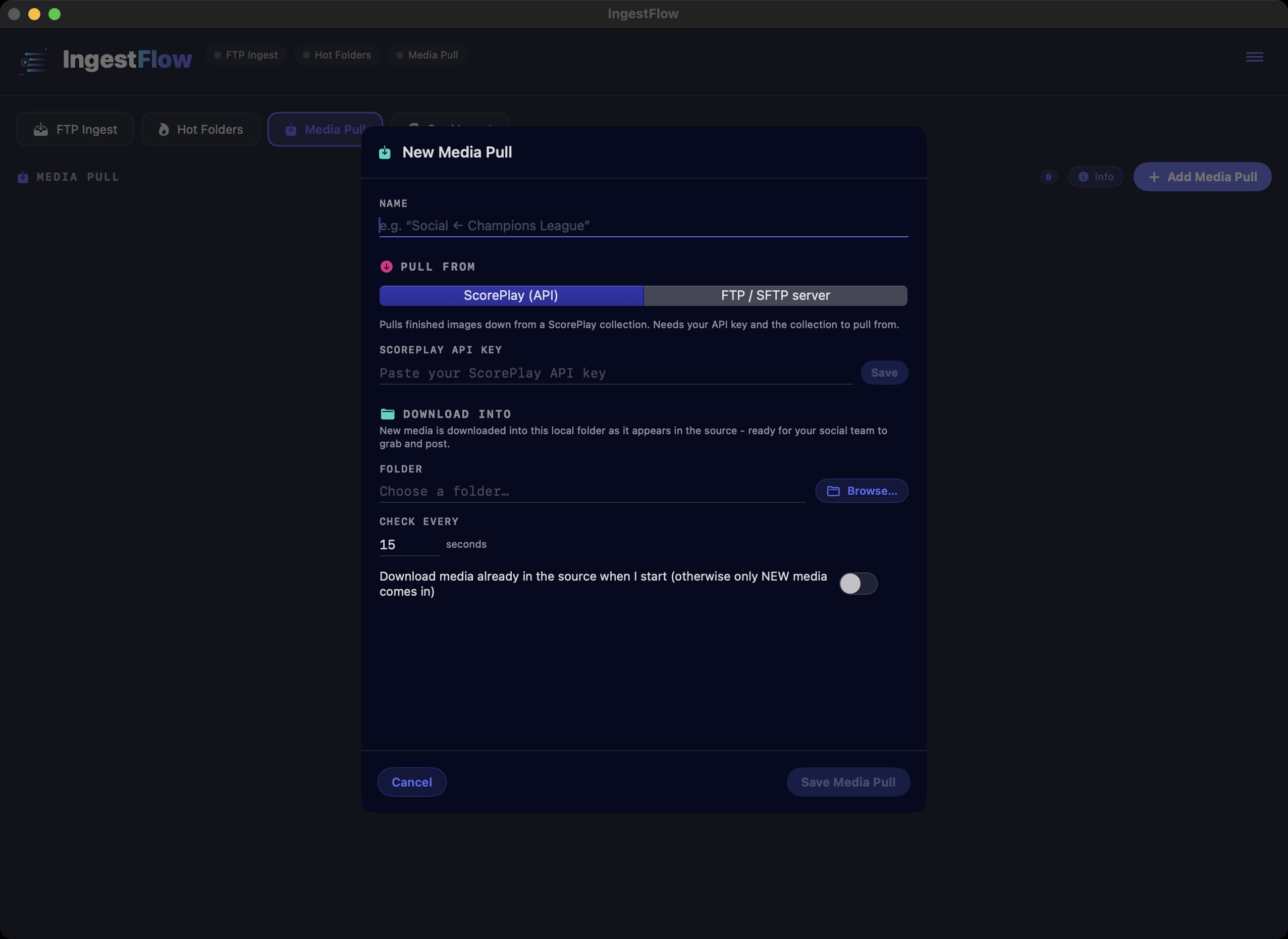
Media Pull is the mirror of Hot Folders — instead of pushing your saved files out, it pulls finished media in. Point it at a Scoreplay collection or an FTP / FTPS / SFTP server and every new image that appears there downloads automatically into a local folder on your Mac. It’s built for social teams and anyone who just needs the edited, posted photos to grab and share — no logging into a portal to fish them out one by one.
How do I set one up?
- Pick the source — a Scoreplay collection (search by name or paste a collection ID) or an FTP/SFTP server and folder.
- Choose the local folder to download into, and how often to check for new media.
- For Scoreplay, choose the image quality to pull — full photographer quality by default, or a smaller web-ready size.
New media lands on its own as it’s posted. Anything already there when you start can be left in place so only new images come in, and nothing is ever downloaded twice.
Media Upload — one-shot batches
What is Media Upload?
The mirror of Media Pull for the way up: drop photos, videos, or whole folders on the tab, pick a Scoreplay collection, and press Upload once. Files upload several at a time with a live per-file status and progress bar, a Stop button, and a one-click Retry Failed. A failed upload never leaves a half-ingested asset behind in the collection, and your chosen collection is remembered between launches.
Why don’t I see the tab?
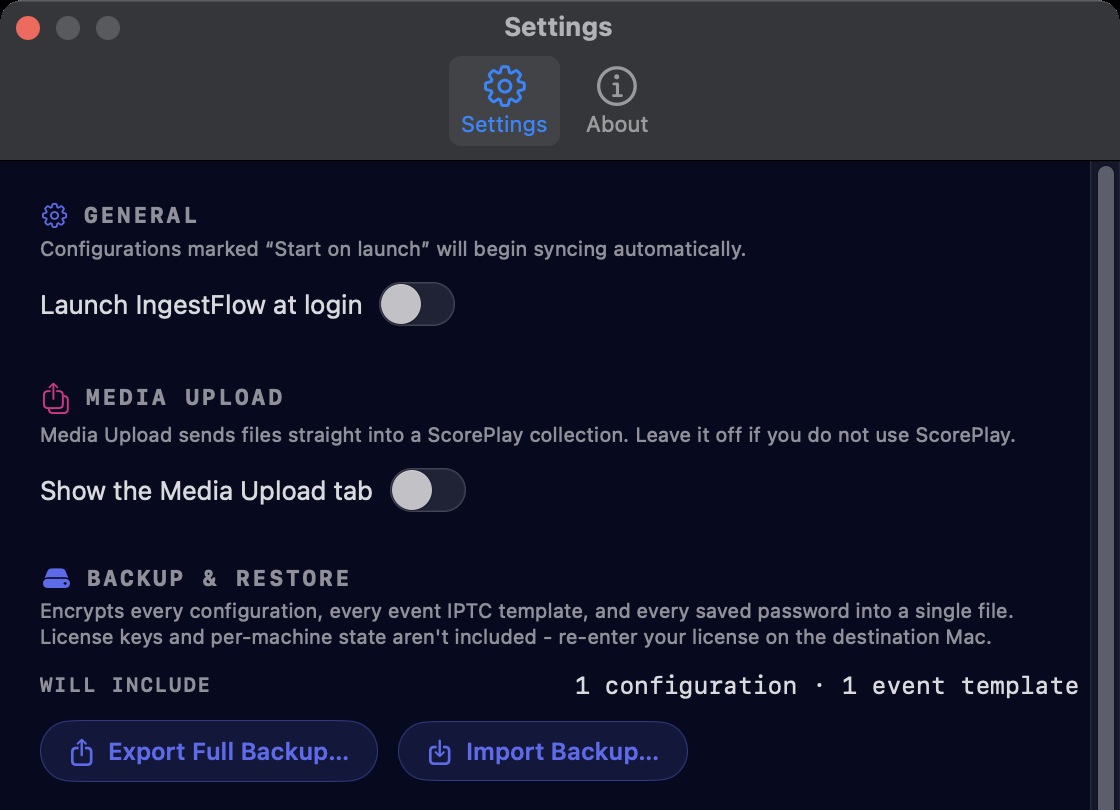
It’s off by default. Turn on Show the Media Upload tab in Settings — leave it off if you don’t use Scoreplay.
Backup & restore
Can I move my whole setup to another Mac?
Yes — IngestFlow has encrypted, whole-program Backup & Restore. Export your connections, watches and templates, then restore them on another machine to clone your setup.
Security & privacy
Where are my server credentials kept?
In the macOS Keychain — never written to disk in plain text. IngestFlow connects only to the servers you configure; the backup file is encrypted. There’s no telemetry.
Troubleshooting
It connects but doesn’t pull anything.
Check the watched folder path on the server and that new files are actually appearing there. Remember IngestFlow waits for a file to stop growing before pulling it — a still-uploading file is held until it’s complete.
It won’t connect.
Confirm the host, port, protocol (FTP / FTPS / SFTP) and login, and that your network/firewall allows the connection. SFTP and FTPS hosts must accept the matching protocol.
It said “Connected” but the server was actually down.
It won’t anymore. The status indicator tells the truth: repeated folder-check failures flip it to an error state until the server answers again, and the Live Log summarizes an ongoing outage in one line instead of repeating the same warning forever. If you see the error state, check the server and your connection — IngestFlow resumes on its own once the server is back.
Support
How do I get help?
Email andrew.wevers@gmail.com — include your macOS version, the protocol you’re using, and what you were trying to do.
Should I attach a log?
Yes, please. Reveal Log Files in the About panel shows two files: the readable log and a sealed diagnostics file that carries the full detail for support without exposing anything on screen — it survives even when the main log is trimmed. Attach both to your email.