Overview
What is CaptionFlow?
CaptionFlow is a macOS app that takes a folder of JPEGs and standardizes every caption in one pass. For each photo it reads the existing caption, rewrites loose game prose into clean wire-service style, assembles a consistent CITY, STATE — MONTH D: prefix with the venue and a normalized date tail, and writes a complete IPTC / XMP / EXIF field set back into the file — credit and copyright included.
It’s the editing-desk step between shooting and sending: instead of hand-fixing captions one by one, you point CaptionFlow at the take and it conforms them all to the same house style.
Audience
Who is it for?
Sports and event photographers and editors who deliver to a wire or client with a required caption format, and who don’t want to retype the same location/date/credit boilerplate on every frame. If you already caption in the field, CaptionFlow is the clean-up and conform pass before delivery.
Requirements
What do I need?
- macOS 13 (Ventura) or later, Apple Silicon or Intel.
- Nothing else to install — CaptionFlow reads and writes metadata natively on your Mac. No command-line tools, no Adobe — nothing else to install.
Installation
How do I install it?
Open the .dmg and drag CaptionFlow into Applications. It ships signed with a Developer ID and notarized by Apple, so it opens cleanly. If an older macOS hesitates, right-click → Open → Open once.
Licensing
How does activation work?
On first launch CaptionFlow asks for your 25-character key. It activates online once, then verifies a signed license offline at every launch after that — so it keeps working without a connection.
How it works
What’s the basic flow?
- Pick the folder of JPEGs to process (CaptionFlow writes in place, in the folder you choose).
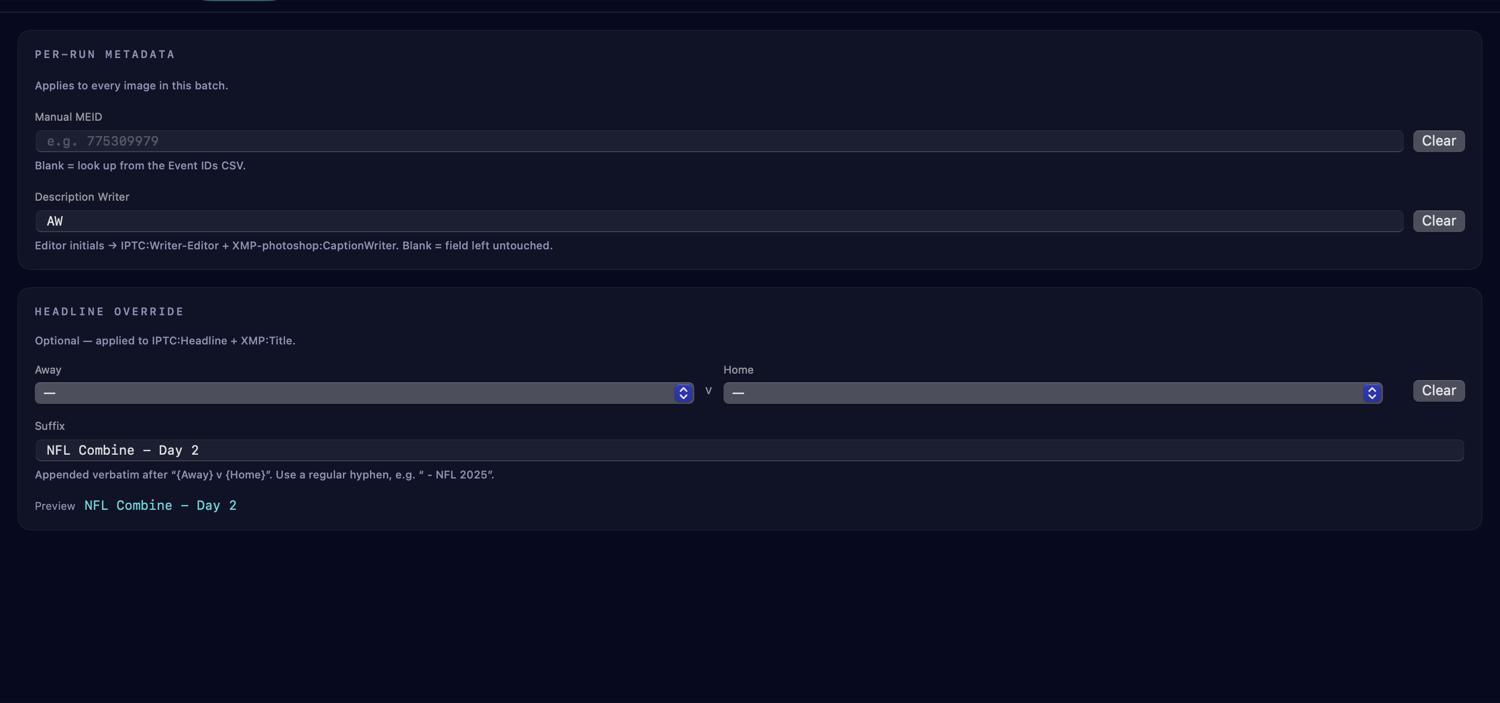
- Optionally load an Event-IDs CSV and set per-run details (MEID, your initials, headline).
- Press Run. A live log and progress bar show each file; processing is concurrent (1–16 workers) and cancellable.
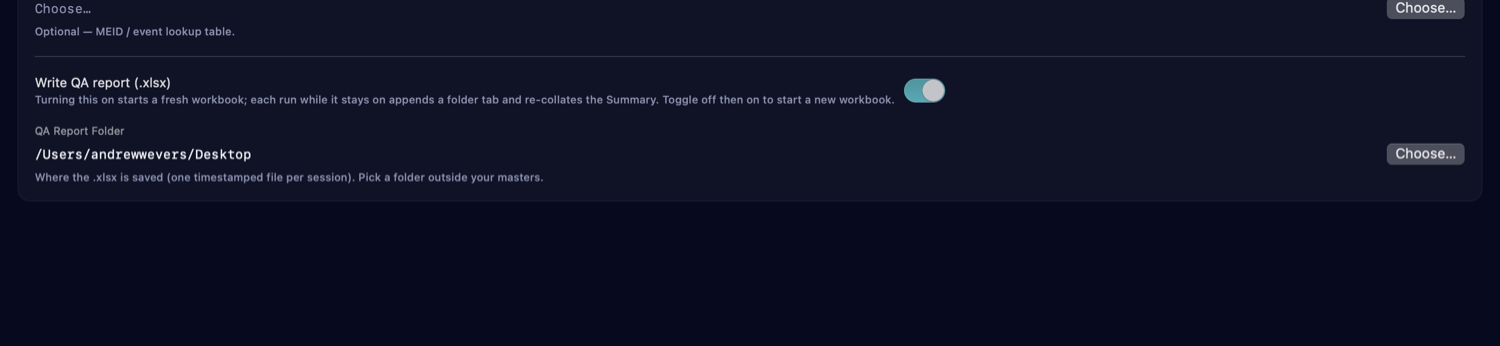
- Check the QA report for anything that needs a human eye.
Under the hood, each photo runs the same pipeline: read the existing caption → rewrite player references → read location/date/author → assemble the standardized caption → resolve the headline and event ID → write the full field set with a two-pass lossless write, then read it back to verify.
The caption rewrite
What does it actually change?
It converts a loose, AP-style game caption into a clean, consistent wire-service caption — normalizing player name/number phrasing, tidying wording, and wrapping it in a standardized location/date/venue frame with your credit and copyright. For example:
Before
Denver Broncos quarterback Bo Nix (10) throws a pass during an
NFL football game against the Cincinnati Bengals on December 1,
2024, in Denver, Colorado.
After
DENVER, COLORADO - DECEMBER 1: Bo Nix #10 of the Denver Broncos
throws a pass during the game against the Cincinnati Bengals at
Empower Field at Mile High on December 1, 2024 in Denver, Colorado.
…plus a standardized credit / copyright block. It also handles college-prospect captions, converting them to the same wire-service style automatically.
Event IDs (CSV)
What’s the optional CSV for?
Load an Event-IDs CSV and CaptionFlow resolves the matchup, venue, event ID (MEID), city/state and date for each photo by ranking the CSV rows against that photo’s caption, date and location — so the right game details land on the right frames without you sorting them by hand. The CSV is optional; without it, CaptionFlow works from each photo’s own metadata.
Per-run settings
What can I set for a batch?
- Manual MEID — force an event ID for the whole batch (overrides the CSV).
- Description Writer — your editor initials, written to
IPTC:Writer-EditorandXMP-photoshop:CaptionWriteron every image. - Headline override — pick an Away and Home team with a custom suffix (default
- NFL <year>) to set the headline, or let CaptionFlow auto-detect it from the caption. - Workers — how many images to process at once (1–16).
The app is organized into Home / Settings / Metadata / QA tabs, with the live log on its own pane.
The QA report
How do I check the results?
Every run appends to a session-accumulating Excel report with a built-in validation linter that flags the things worth a second look — multi-word positions, jersey-number errors, missing fields, and similar. So you can batch fast and still catch the handful of captions that need a human.
Safety
Is it safe to run on my originals?
CaptionFlow writes in place in the folder you select, using a two-pass lossless write (the JPEG pixels aren’t recompressed) and then reads the caption back to verify it landed. As with any batch metadata tool, keep a backup of irreplaceable originals before a large run.
Troubleshooting
The matchup or event ID came out wrong.
Make sure the right Event-IDs CSV is loaded, or set a Manual MEID for the batch. CaptionFlow ranks CSV rows by caption, date and location — if a photo’s existing caption is sparse, the manual override is the surest path.
A caption didn’t change.
CaptionFlow rewrites from the photo’s existing caption — if a frame had no caption to start from, there’s nothing to restyle. Caption it in the field (or with the prefix details) and re-run.
Support
How do I get help?
Email andrew.wevers@gmail.com — include your macOS version and what you were processing.